
Configuring the Govee Floor Lamp 3 in a Singapore HDB flat requires a thoughtful balance of physical placement, app customization, and scene programming. Because HDB living rooms often serve multiple purposes—acting as a workspace, entertainment hub, and relaxation zone—a single lighting preset is rarely sufficient. By understanding how to position the fixture to maximize light diffusion and how to utilize the Govee Home app’s segmented controls, you can easily transition your space from a bright, functional daytime environment to a cozy, inviting evening retreat.
To achieve the best results, you must look beyond basic on-and-off functions. This guide details how to optimize your lamp’s physical setup, adjust its color temperature spectrum, design custom scenes for daily activities, and maintain the device safely over time.
Strategic Placement for Compact HDB Layouts
Finding the right spot for a floor lamp in a compact HDB living room layout is essential for both space optimization and visual comfort. Placing the lamp in a corner is one of the most effective ways to maximize space. When positioned in a corner, the light reflects off two adjacent walls, creating a soft, indirect glow that makes the entire room feel larger and more open. This technique, known as wall-washing, minimizes harsh shadows and provides a gentle background illumination that reduces the need for bright overhead fixtures.
Products mentioned in this guide
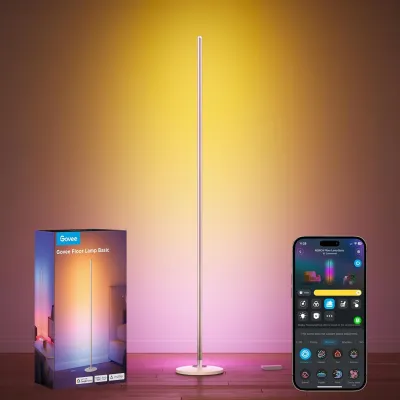
Prices are valid at publication and may change. Please refer to the product page for the latest price.
Alternatively, positioning the lamp directly behind your sofa can create an elegant backlit effect. This placement keeps the floor area clear of obstructions, which is particularly beneficial in narrower 3-room or 4-room HDB flats. When opting for this setup, ensure the lamp is positioned slightly to the side or far enough behind the seating area so that the light source does not shine directly into your eyes when you are sitting down. Direct exposure to the light source can cause glare and eye fatigue, especially during extended periods of relaxation.
Another critical consideration is the placement of the lamp relative to your television screen. To prevent distracting reflections, avoid placing the lamp directly opposite the TV. Instead, position it to the side or behind the screen to act as a bias light, which actually helps reduce eye strain by balancing the contrast between the bright display and the dark room.
Finally, plan your cable routing carefully to maintain a clean, uncluttered aesthetic. HDB flats typically have fixed electrical outlets along specific walls, which may require you to run the power cord across a short distance. Use low-profile cable clips or adhesive trunking along the baseboards to secure the cord. This not only prevents tripping hazards in high-traffic areas but also protects the cable from being pinched under heavy furniture or damaged during routine cleaning.
Tuning Light Settings in the Govee Home App
Once your lamp is physically positioned, the next step is to configure its output using the Govee Home app. The app provides access to a wide spectrum of warm-to-cool white light, as well as millions of color options. For daily use, start by adjusting the white balance to match the natural progression of daylight. During the morning and afternoon, setting the lamp to a cool white color temperature (around 4000K to 5000K) with moderate brightness can help maintain focus and complement the natural light entering through your windows.

As evening approaches, transition the color temperature toward a warm white (around 2700K). This warmer spectrum mimics the soft glow of traditional incandescent bulbs, signaling to your body that it is time to wind down. The app’s brightness slider allows you to dim the output to lower levels, which is ideal for creating a calm, relaxed atmosphere before bedtime.
One of the most powerful features of the Govee Floor Lamp 3 is its segmented lighting control. Rather than emitting a single uniform color, the lamp’s vertical pole is divided into multiple independent zones that can be customized individually. You can use this feature to create sophisticated, multi-tonal displays. For example, you can set the top segments to a soft, warm white to illuminate the ceiling, while assigning a subtle accent color, such as a gentle amber or soft blue, to the middle and lower segments to add visual depth to your living room walls.
To make daily operation seamless, take advantage of the app’s preset and saving functions. Once you have dialed in a combination of colors, brightness levels, and segment settings that you enjoy, save it as a custom DIY scene. Label these presets with clear, descriptive names like “Morning Focus,” “Afternoon Calm,” or “Late Night Dim.” This allows you to change the entire mood of your HDB living room with a single tap on your smartphone, eliminating the need to manually adjust individual segments every day.
Designing Ambiance Scenes for Daily Activities
To get the most value out of your smart lighting, you should design specific scenes tailored to your household’s daily routines. A dedicated evening wind-down scene is highly beneficial for transitioning the living room from a busy daytime space to a peaceful sanctuary. For this setup, configure the lamp to a low brightness level, around 10% to 15%, using warm, earthy tones like soft orange, gold, or deep amber. This low-intensity, warm illumination helps reduce blue light exposure, supporting your body’s natural sleep cycle.
For entertainment and movie nights, the goal is to provide enough ambient light to prevent eye strain without washing out the television screen. Create an “Entertainment Mode” where the lamp is set to a very dim, neutral white or a deep, saturated color like dark blue or purple. Positioned in a corner or behind the TV, this low-level background light softens the harsh contrast of the screen in a dark room, creating a cinema-like experience right in your HDB flat.
If you use your living room for reading, studying, or working, you can configure a hybrid scene that balances task lighting with ambient comfort. By utilizing the segmented control, set the upper segments of the lamp to a brighter, neutral white light (around 3500K to 4000K) to provide sufficient illumination for reading. At the same time, keep the lower segments set to a dim, warm glow. This configuration ensures you have clear visibility for your tasks while keeping the overall room atmosphere cozy and non-disruptive for other family members sharing the space.
You can also experiment with the app’s dynamic scene modes, which gently cycle through complementary colors to mimic natural phenomena like a flickering fireplace or a sunset. When using these dynamic modes in a living room, select options with slow, gradual transitions rather than rapid color changes. Slow transitions are much more conducive to a relaxing home environment and prevent the lighting from becoming a distraction during conversations or quiet evenings.
Safety Checks and Basic Troubleshooting
Operating smart lighting safely and maintaining its performance requires a few basic precautions and routine checks. First, ensure that the lamp’s power adapter is compatible with Singapore’s standard electrical supply of 230V and 50Hz. If you are plugging the lamp into a multi-way extension outlet or power strip, verify that the strip is safety-certified and carries a recognized safety mark. Avoid overloading the power strip with high-wattage appliances like portable air conditioners or vacuum cleaners, as this can lead to electrical instability or overheating.
Physical maintenance is also important for preserving the quality of the light. Dust can accumulate on the lamp’s diffuser over time, which can noticeably dim the light output and alter the color quality. Regularly wipe down the exterior of the lamp with a dry, soft microfiber cloth. Never use wet cloths, liquid sprays, or abrasive chemical cleaners, as moisture can penetrate the electrical housing and cause short circuits or permanent damage to the LEDs. While cleaning, inspect the power cable to ensure it is not pinched under the lamp base or furniture legs.
If your lamp experiences connectivity issues, such as dropping off your home network or failing to respond to app commands, start by checking your Wi-Fi router. Smart home devices typically require a stable 2.4GHz Wi-Fi band to operate; they generally do not support 5GHz bands. Ensure your router is broadcasting a dedicated 2.4GHz signal and that the lamp is within reasonable range. If the connection remains unstable, you can perform a factory reset on the lamp by following the manufacturer’s instructions—usually involving a specific button combination on the physical control pad—and then re-add the device in the Govee Home app.
Frequently Asked Questions (FAQ)
Can I control the Govee Floor Lamp 3 with voice assistants?
Yes, the Govee Floor Lamp 3 is compatible with popular voice assistant platforms, including Amazon Alexa and Google Assistant. To enable voice control, you must first set up the lamp within the Govee Home app and ensure it is connected to your home Wi-Fi network. Next, open your preferred voice assistant app, search for the Govee integration, and log in using your Govee Home credentials to link the accounts. Once linked, you can use simple voice commands to turn the lamp on or off, adjust the brightness, or switch between your saved custom scenes without needing to open your phone.
What should I do if the lamp flickers or loses connection?
If you notice the lamp flickering, first verify that the power adapter is plugged securely into both the wall outlet and the lamp’s input port. Ensure the lamp is not connected to a wall outlet controlled by a physical dimmer switch, as traditional dimmers can disrupt the power flow to smart LED drivers. For wireless connection drops, check that your home Wi-Fi network is stable and that the lamp is not blocked by thick concrete walls or metal shielding, which are common in HDB construction. Additionally, open the Govee Home app to check for and install any available firmware updates, which often contain stability improvements and bug fixes.

Community discussion
Share your experience or ask a question. Comments are reviewed before publication.